


HP
HP Inc.
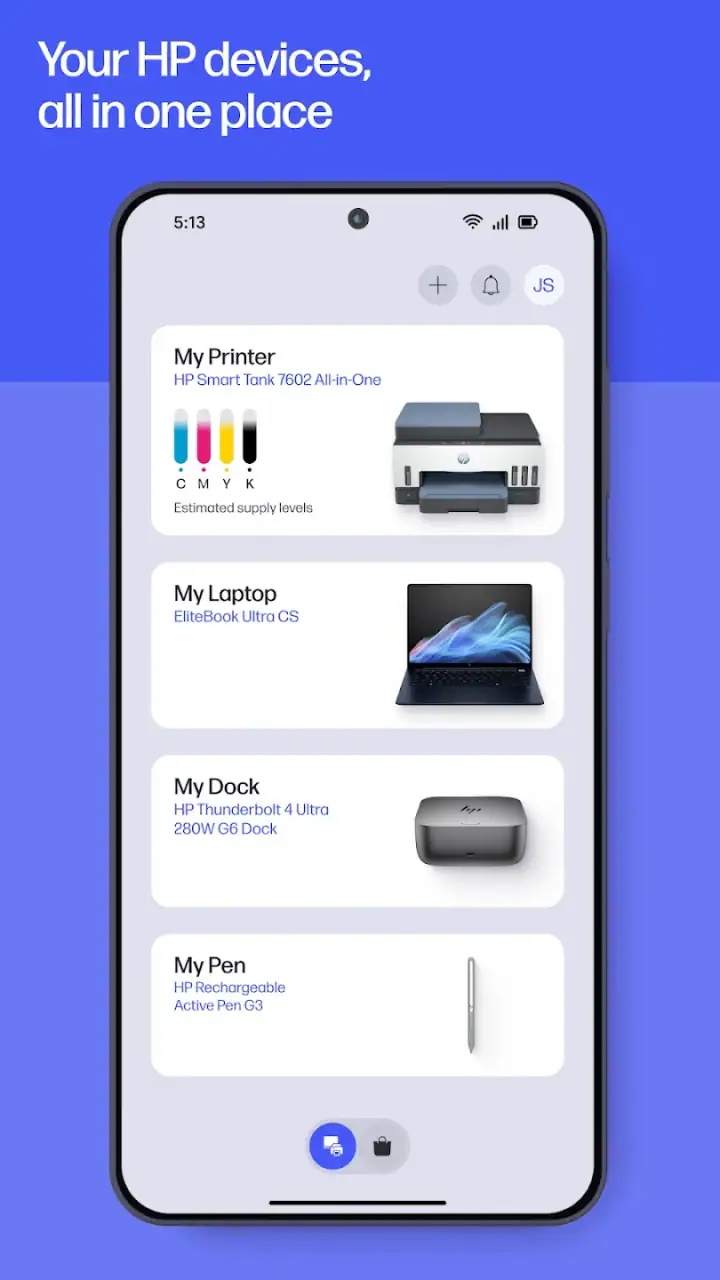
I spent time with HP as a practical productivity companion for HP printing, and my first impression is that its value comes from reducing the small bits of friction around a printer. Instead of treating printing as a separate task that begins only when a document is ready, the app brings setup, everyday print actions, and support into one mobile workspace. That makes it especially useful when a printer is shared at home, when a laptop is not nearby, or when someone wants a simpler way to get a phone photo onto paper.
HP is a free app from HP Inc. in the productivity category, with an Everyone age rating. It has been available since November 21, 2012, and its long presence helps explain why it feels aimed at ordinary household and office routines rather than at a narrow technical audience. The current version is 20.2.0.6076, and the app has reached over 100 million installs with an average rating of 4.2 from around 880 thousand ratings. Those figures suggest a broadly useful tool, although they should not be mistaken for a guarantee that every printer, phone, and network combination will behave identically.
How HP feels during ordinary printing
For a straightforward task, the app feels more like a control panel than a complicated document editor. I found the basic idea easy to understand: connect the printer, choose something from the phone, adjust the available options, and send it to paper. That focused approach is important because printing from a phone can otherwise involve moving a file between apps, searching through system menus, and trying to remember which printer was selected last.
Related News

Evernote's Comeback: The Note Organizer Revolutionizing Productivity

Evernote's Strategic Surge: A New Era in Productivity
My expectation for speed would be modest but positive. The app itself should not be judged like a game or a photo editor; its most important performance test is how quickly it gets from a selected file to a clear print command. On a strong local connection, the interaction should feel reasonably direct. The slower part of the experience is often outside the app: waking a printer, finding it on the network, preparing a large document, or waiting for the physical printer to finish.
This distinction matters when judging perceived speed. A tap that appears to do nothing may actually be waiting for the printer to respond, while a delayed preview may be caused by a large image rather than by the interface alone. I would avoid repeatedly pressing the print button during those moments. A short pause and a check of the printer status are safer than accidentally sending the same job more than once.
Latest News

Uber Eats Under Pressure: What Happens When Delivery Goes Wrong

How QR & Barcode Scanner Adapts to Android and iOS Innovations

Why Waze Navigation & Live Traffic Is Your Essential Travel Companion
CapCut Mastery: Unleash Hidden Features for Pro-Level Editing

How OS Updates Enhance Roblox Adventures

Teacher Simulator: Exam Time Turns Quick Classroom Judgments into a Repetitive Loop
The app is most convincing when the job is simple. Printing a boarding pass, a school worksheet, a photographed receipt, or a few images from a phone is the kind of work where a dedicated printer app earns its place. I also like the convenience of handling the task without opening a desktop computer, particularly when the phone already contains the document or photo I need.
What happens when the workload gets heavier
Heavy use changes the experience. A single photo and a long document do not place the same demands on the phone, the network, or the printer. Large image files can take longer to prepare, and multi-page documents create more opportunities for a connection to pause or for the printer to need attention. In those situations, HP is useful as a coordinator, but it cannot remove the physical limits of the printer or the quality of the wireless connection.
I would be cautious about sending several large jobs in quick succession from a phone. A better workflow is to finish one job, confirm that the printer has accepted it, and then start the next. This is a small habit, but it prevents confusion when a printer is slow to display its queue or when the app appears to be waiting. For a busy office producing many documents, a computer-based workflow may still be more comfortable because desktop software usually offers a larger view of files, queues, and print settings.
Gallery
Resource demands also depend on what is being printed. A text-heavy file is usually easier to handle than a high-resolution collection of photos. If the phone is already low on storage or busy with several demanding apps, I would close unnecessary tasks before preparing a large print job. That is not a special requirement unique to HP; it is simply a sensible way to give a mobile printing app more room to work.
One useful trade-off is convenience versus control. HP makes the process approachable, but a phone screen is not the ideal place to inspect every page of a complicated document. Before printing, I recommend checking the source file in the app that created it, especially when page breaks, margins, or image placement matter. That extra check can save paper and ink, even when the print command itself is easy.
Reliability depends on the whole connection
In my experience, reliability with a printer app is a chain rather than a single feature. The phone needs to see the printer, the printer needs to be ready, and the job needs to travel successfully between them. HP gives that chain a single place to start, which is more convenient than troubleshooting through unrelated phone settings, but it cannot make an unavailable printer appear magically.
The setup process is therefore the most important first test. I would keep the printer powered on, make sure the phone is connected to the intended home or office network, and follow the in-app instructions without jumping between screens. If the printer has recently changed networks, repeating old steps may not help; it is better to treat the connection as a fresh setup rather than assuming the app is at fault.
Recovery is reasonably understandable when approached methodically. If a job stalls, I would first look at the printer itself: paper, power, visible error messages, and whether another device is already using it. Next, I would return to the app and check whether the printer is still recognized. Only after those checks would I restart the app or the phone. This order avoids turning a temporary printer problem into a longer setup problem.
Another practical tip is to keep the phone close to the network you actually want to use during setup. A printer that was configured on one network may not be reachable when the phone has moved to another, even if both networks have similar names. In shared homes, guest networks can also complicate device discovery. HP is helpful here because it gives the user a clear starting point, but network layout still matters.
The support side of the app is valuable for people who do not want to search through separate help pages whenever something goes wrong. I would not expect it to replace every form of technical assistance, but having setup and support in the same app reduces the number of places a new printer owner needs to look. That is one of the strongest reasons to keep it installed after the initial setup.
Phone and operating-system constraints to consider
The stated minimum operating-system requirement is Android 10 or newer. That is important before installing, particularly if the app is being considered for an older spare phone or a family device. A free app is not much use if the phone cannot run it, so checking the operating-system version should be the first step rather than something discovered after downloading.
On a compatible device, the experience will still vary with screen size, storage, network quality, and the type of file being printed. A recent phone with plenty of free space should be more comfortable for large photos than an older device that is already crowded with media. I would also keep the app updated when possible, because printer compatibility and mobile operating systems change over time.
There is a practical privacy habit worth adopting with any printing workflow: choose the file deliberately and review the preview before confirming. A phone often contains personal photos, messages, and downloaded documents, so selecting from the correct folder matters. HP makes mobile access convenient, but that convenience means the user should slow down for a moment when the document is sensitive or the printer is shared.
The Everyone rating makes the app suitable for general household use, but ease of use is not the same as universal suitability. Someone who only prints once a year may prefer the operating system’s built-in print function if it already recognizes the printer. Conversely, a household that regularly prints photos, school materials, or shipping documents is more likely to benefit from keeping HP available for repeated access and support.
Where it beats ordinary alternatives
The usual alternative is to print through the phone’s system menu or through the sharing option inside another app. That can be perfectly adequate when the printer is already configured and the file format is simple. The advantage of HP is that it gives printer setup, print access, and support a common home. For a first-time printer owner, that unified path is less intimidating than trying to understand several disconnected menus.
It also makes more sense than relying on a computer for every small job. If a photo is already on the phone, sending it from the phone avoids an unnecessary transfer. The same is true for a document received in a messaging app or saved from email. In those cases, HP turns the phone into the practical starting point instead of making the computer the mandatory middle step.
However, the app is not automatically better for every printing situation. A desktop workflow remains preferable when I need extensive document inspection, precise layout adjustments, or a large batch of files. The phone is excellent for quick access, but it is less comfortable for comparing many pages or organizing a complicated queue. Users who already have a smooth computer setup may see HP as a useful backup rather than a full replacement.
There is also a difference between printer-specific support and general mobile printing. HP is most compelling for people using HP hardware, because the app’s purpose is closely tied to that ecosystem. If someone uses printers from several manufacturers, a system-level printing option may be more convenient for switching between brands. The dedicated approach brings focus, but that focus can feel limiting outside HP equipment.
Everyday scenarios where the app earns its place
Imagine receiving a form by email while away from a desk. I would open the document on the phone, use HP to reach the home printer, check the page presentation, and print it without first downloading the file to a computer. The benefit is not dramatic technology; it is the removal of several small steps at exactly the moment when convenience matters.
A second scenario is a parent printing a child’s worksheet from a phone. The document may arrive through a school communication app, and the printer may be in another room. HP is useful because the entire workflow begins with the device already in hand. Before confirming, I would check whether the worksheet is one page or several and avoid sending extra copies while waiting for the printer to respond.
Photo printing is another natural use, but it deserves more care. A phone image may look sharp on screen while producing a different result on paper, and cropping can change the composition. I would select the image carefully, inspect the available presentation options, and print a test image before committing to a larger batch. This is where a phone app is convenient but not a substitute for thoughtful preparation.
For a small home office, the support access can be as useful as the print button. When a printer is shared by several people, the person who installed it is not always the person who needs to fix it. A single app that helps another household member find the printer and understand the next step can reduce interruptions, even if the underlying issue is still something physical like paper or power.
Who should use it, and who should skip it
I would recommend HP to owners of compatible HP printers who regularly print from phones or want a guided setup experience. It is particularly suitable for families, students, home offices, and anyone who receives documents on a mobile device. The fact that it is free removes the biggest barrier to trying it, while the broad install base suggests that it has become a familiar option for many printer users.
I would be less enthusiastic for someone with an older phone below Android 10, someone who never prints, or someone whose printing is already handled smoothly by a computer. I would also consider a general system printing tool if I regularly move between printer brands. In those cases, HP may add another app without solving a real problem.
For users who expect a full desktop publishing environment, the app may feel too focused. It is designed to make printer interaction easier, not to replace every editing, layout, or document-management tool. My advice is to create and proofread complex documents elsewhere, then use HP for the final connection to the printer.
My performance and stability verdict
HP succeeds because it concentrates on the part of printing that often causes the most annoyance: getting a phone, a printer, and a support path working together. Its perceived speed is best when the printer is already configured and the job is modest. During large files, busy networks, or printer errors, patience and basic troubleshooting matter more than tapping faster.
Its resource demands seem appropriate for a productivity app, but the workload can grow with large photos and multi-page documents. I would not treat a delayed response as proof that the app has failed until I have checked the printer and network. That simple distinction improves recovery and reduces duplicate jobs. The app is most reliable when used as part of a clean workflow rather than as a way to bypass every printer or network limitation.
Overall, I see HP as a sensible everyday tool rather than an essential app for every phone owner. It is free, broadly accessible, and clearly aimed at making HP printing less intimidating. The strongest reason to install it is repeated mobile printing combined with the need for setup and support in one place. If that describes your routine, I would recommend giving it a try; if you print rarely or need advanced document control, the built-in phone option or a computer may remain the better fit.
My bottom line: HP is at its best when convenience, guided setup, and dependable access to an HP printer matter more than advanced editing. Used with realistic expectations about network delays, printer readiness, and phone limitations, it turns many small printing jobs into a straightforward part of the day.
FAQs for HP
What is the primary purpose of the HP app?
The HP app is designed to seamlessly connect and manage your HP printers and other devices. It facilitates easy printing, scanning, and sharing of documents directly from your mobile device, offering a user-friendly interface to enhance productivity at home or in the office.
Is the HP app compatible with all HP printers?
The HP app is compatible with a wide range of HP printers, but it's essential to check the specific model compatibility before downloading. The app supports most newer models, but older printers may require different software or updates to function effectively with the app.
Does the HP app support remote printing?
Yes, the HP app supports remote printing, allowing you to print documents from anywhere, as long as your printer is connected to the internet. This feature is particularly useful for those who need to print documents while away from their home or office.
What security features does the HP app offer?
The HP app includes several security features to protect your documents and data. It offers secure printing options, encryption, and the ability to control access to the printer. These features ensure that your sensitive information remains protected while using the app.
Are there any in-app purchases or subscriptions required?
The HP app is free to download and use for basic functionalities like printing and scanning. However, some advanced features or services, such as enhanced photo editing or cloud storage options, may require in-app purchases or subscriptions to access.
Pros
- User-friendly interface enhances experience.
- Wide range of customizable features.
- Seamless integration with HP devices.
- Offers robust security features.
- Regular updates improve performance.
Cons
- Can be resource-intensive on older devices.
- Occasional connectivity issues.
- Limited offline functionality.
- Some features require subscription.
- Initial setup can be time-consuming.


